





shelby_alan

Forum Replies Created


I’ve been through this exact thing last year with my OnePlus. My phone froze at the logo after installing an APK and wouldn’t go past it. What worked for me was booting into recovery mode and clearing the cache partition. I know it sounds simple, but that did the trick without wiping anything.
Just hold Volume Down + Power till recovery mode loads, then select Wipe Cache Partition. Doesn’t touch your files.

Many people have issues like crashes and slowdowns after the KB5035853 update on Windows 11. To fix it:
Uninstall the KB5035853 update in Settings > Windows Update > Uninstall Updates.
Run sfc /scannow in Command Prompt (Admin) to fix system files.
Run DISM /Online /Cleanup-Image /RestoreHealth to repair Windows.
Pause updates to stop the update from reinstalling.
Update your drivers from Device Manager.
If it still doesn’t work, try a System Restore to before the update.

Hi,
My PC keeps running CHKDSK on startup and gets stuck in a loop. It won’t boot into Windows. I’m worried about losing my files.
How can I stop the loop and fix this safely?
Any way to recover my data first?
Can Safe Mode or a bootable USB help?
Would really appreciate simple steps or advice.

Hi, My D drive has suddenly disappeared from File Explorer after a recent update or restart. It was working fine before.
I’m not sure if it’s hidden, unassigned, or deleted. I haven’t made any changes myself.
Any idea how to restore it?
Should I check Disk Management?
Could it be a drive letter issue?
Is my data still safe?

Hi all,
My D drive has suddenly disappeared from File Explorer after a recent Windows 11 update or restart. It was working fine before.
I’m not sure if it’s hidden, unassigned, or deleted. I checked Disk Management, but it’s a bit confusing.
Has anyone faced this?
How can I restore the missing D drive?
Is there a safe way to get my files back?

Okay this is embarrassing but I accidentally wiped a whole convo thread with my doctor while trying to delete some spam texts. I use the regular Google Messages app on my Pixel 7.
I don’t think I had anything backed up, and I didn’t notice until like 2 days later. Is there any way to recover these? I’m super stressed, it had some important info I forgot to copy down.
Has anyone actually gotten deleted texts back successfully?? Or am I just outta luck?

A bit of a nightmare this morning. My Pixel 6 slipped outta my hoodie pocket face first onto concrete. The screen is completely blacked out and unresponsive. I had so many photos on there, and of course, I never backed them up
The phone seems to be powering on (I can feel the little buzz when I plug it in), but the screen shows nothing. Is there any legit way I can get my photos back without fixing the screen? I’m kinda panicking, so any help would be amazing.
Thanks in advance

Hi all,
After installing the KB5035853 update on Windows 11, my system started acting up — BSODs, random crashes, and overall slower performance.
Is anyone else seeing the same issues?
Any fixes or workarounds?
Has anyone tried uninstalling the update — does it help?
Appreciate any help or advice!

This morning, my phone (Samsung Galaxy A52) randomly restarted while I was checking some files, and ever since, it’s stuck on the boot logo. It doesn’t go beyond the Samsung screen — I left it for 30+ mins just in case, but no luck.
I haven’t dropped the phone or installed any major updates recently, though I did download a couple of lesser-known apps from outside the Play Store last night (probably not the smartest move). I’m starting to freak out a bit because I have client call recordings and personal notes saved on it that I hadn’t backed up.
Is there a way to fix this without losing all my data? Or is factory reset my only option?

Of course! Who doesn’t dream of spending their evening decoding file headers in a hex editor? It’s like Sudoku for people who really hate themselves. Or… you could just use photo repair software and have your life back. Your call Beatrice.

You must use tools like JPEGsnoop or exiftool to analyze metadata and file structure. If headers are damaged, manually reconstruct them with a hex editor.
Sounds technical, right??
No worries!! All you need is a photo repair software.
Ah yes, just what the world needed—notifications that now multitask better than I do, and windows I can resize while still not getting actual app updates on time.
Android 16: fixing problems we didn’t know we had while leaving the real ones to Android 17, probably.

That’s a good point Kai. We should be careful while operating our devices.
Android 16 Baklava launched June 10, 2025- initially on Google Pixel devices (not surprising!!).
The main introduction of this release is Material 3 Expressive with richer animations, colors, blur effects, and fluid gestures—set for a later update, not at initial launch.
Main Points to consider:
Live Updates: Offers real‑time notification tracking (e.g., ride‑hail, food delivery)—Google’s version of iOS-style Live Activities.
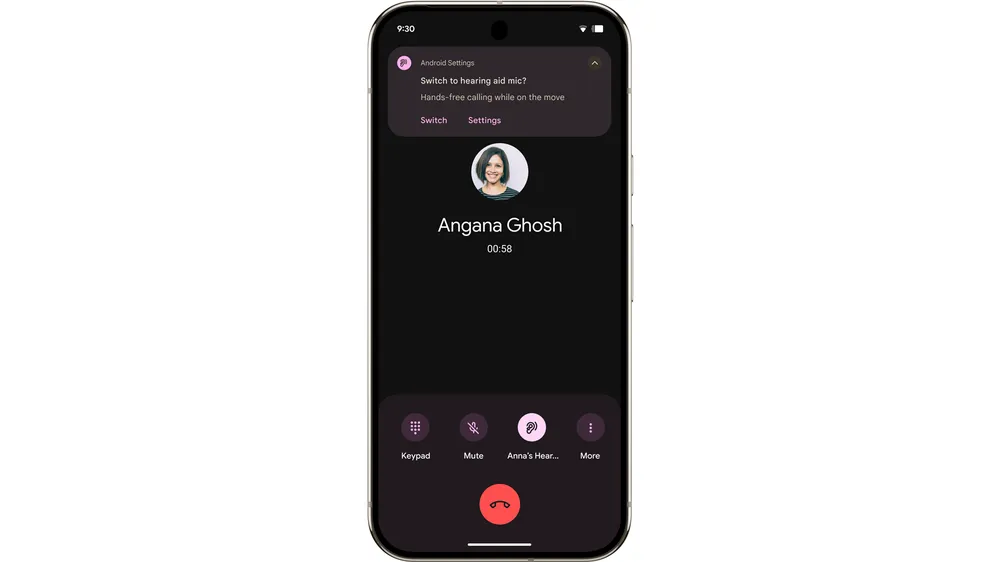
Auto-grouping: Automatically clusters similar notifications for cleaner management.
Desktop windowing: This feature allows users to open, move, and resize app windows. It was designed initially for tablets, foldables, and Samsung DeX.
Custom keyboard shortcuts & taskbar overflow: Enhances navigation and productivity on larger screens.
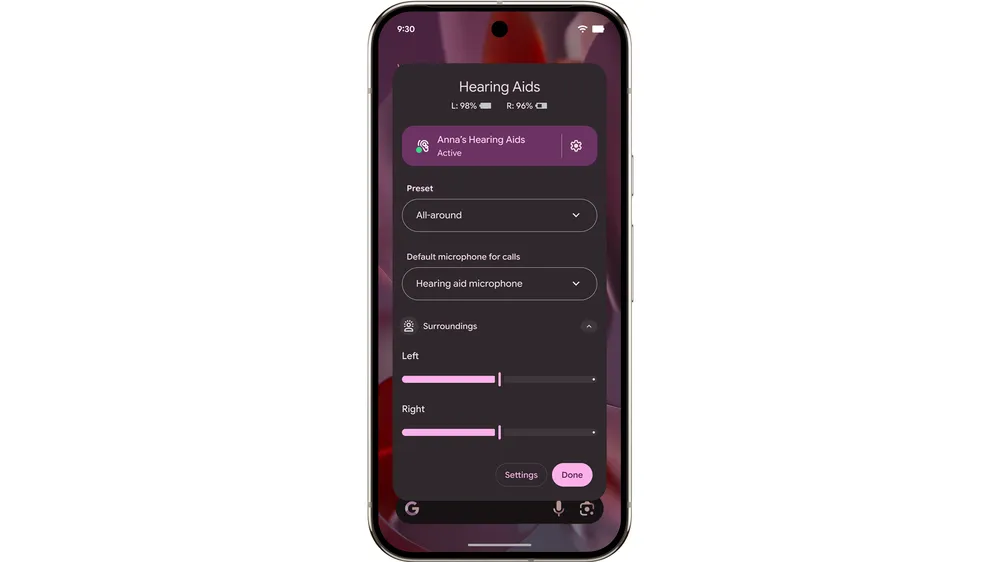
LE Audio & hearing aids support

Happened to my S22 like two months ago. I didn’t wanna drop $$$ on screen repair just to grab a few hundred photos.
Here’s what worked for me (assuming your phone’s still alive underneath that black screen):
1. If USB debugging was already on, plug it into your PC. Sometimes it shows up in File Explorer, and you can just copy over the DCIM folder.
2. If you can’t access it that way, try using an OTG cable + mouse combo. It lets you kinda “blindly” control the screen. Bit janky, but it works if you remember the layout.
3. Did you ever sync photos to Google Drive or Google Photos? If yes, go check your Drive from a laptop. Might find a good chunk there.
Worst case, you can use an Android data recovery software that scans the internal storage or SD card if you’ve got one.